Image to Video
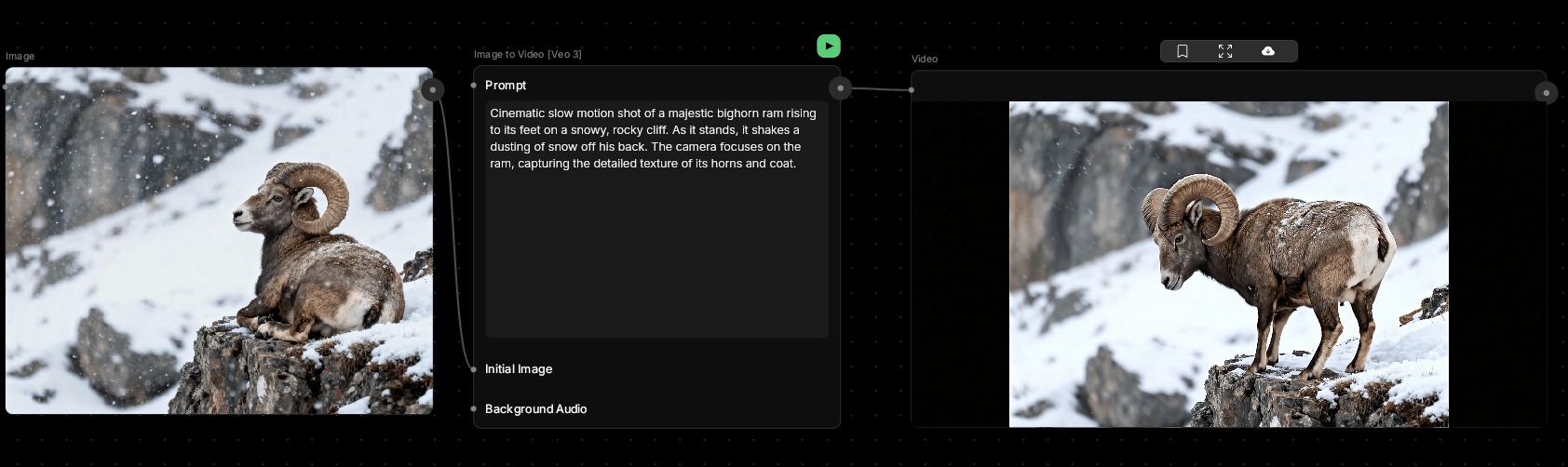
Turn your favorite still into a living scene.This node takes a static image and adds motion — camera movement, subtle animation, or atmospheric effects. Perfect for making product shots dynamic or bringing illustrations to life.
🪄 When to Use It
Use Image to Video when you have a great still image and want to add movement. It works great for:- Product animations — add smooth camera pans around your product
- Concept art in motion — see your illustration come alive
- Social media content — eye-catching animated posts
- Portfolio pieces — make your work stand out with motion
Average time: 60–120 seconds per clip
Cost: High
🎚️ Controls and Parameters
Prompt (Text, Required)
Describe the motion you want to add. Focus on camera movement and subtle animations. 💡 Tip: “Slow camera pan to the right, soft bokeh in background” is clearer than “make it move.”Initial Image (Image, Required)
The still image you want to animate. Works best with clean, well-composed images.Background Audio (Audio, Optional)
Add a soundtrack or ambient sound to accompany your animation.Duration (Select)
Choose clip length:- 4 seconds — quick motion, faster generation
- 6 seconds — balanced for most uses
- 8 seconds — longer, cinematic movements
Resolution (Select)
- 720p — faster generation, preview quality
- 1080p — higher quality for final delivery
Aspect Ratio (Select)
- 16:9 — landscape format
- 9:16 — portrait format
Generate Audio (Toggle)
Automatically create ambient sound that matches the scene.🎨 Available Models
Choose the model that fits your animation style:Veo 3 (Default)
Google’s advanced image-to-video model. Excellent at preserving image details while adding natural motion.Wan2.5
Versatile model with support for custom background audio and multiple resolutions (480p, 720p, 1080p).Kling 2.5 Turbo
Fast animation generation. Good for quick previews and social media content.Sora 2
Standard quality with reliable motion. Supports 4, 8, and 12-second durations.Sora 2 [Pro]
Premium version with better detail preservation and smoother motion. 💡 Tip: Veo 3 gives the most natural-looking animations. Try Kling Turbo for speed.🎨 What to Expect
The AI will add motion while trying to preserve the essence of your image.Best results come from:
- Clear, well-lit source images
- Simple camera movements (pan, zoom, dolly)
- Specific motion prompts (“camera slowly moves forward”)
💬 Quick Tips
- Use high-quality source images for best results
- Describe the specific camera move you want (pan, tilt, zoom)
- Subtle motion often looks better than dramatic changes
- Match your prompt to the mood of the image
- Try multiple generations with different motion descriptions